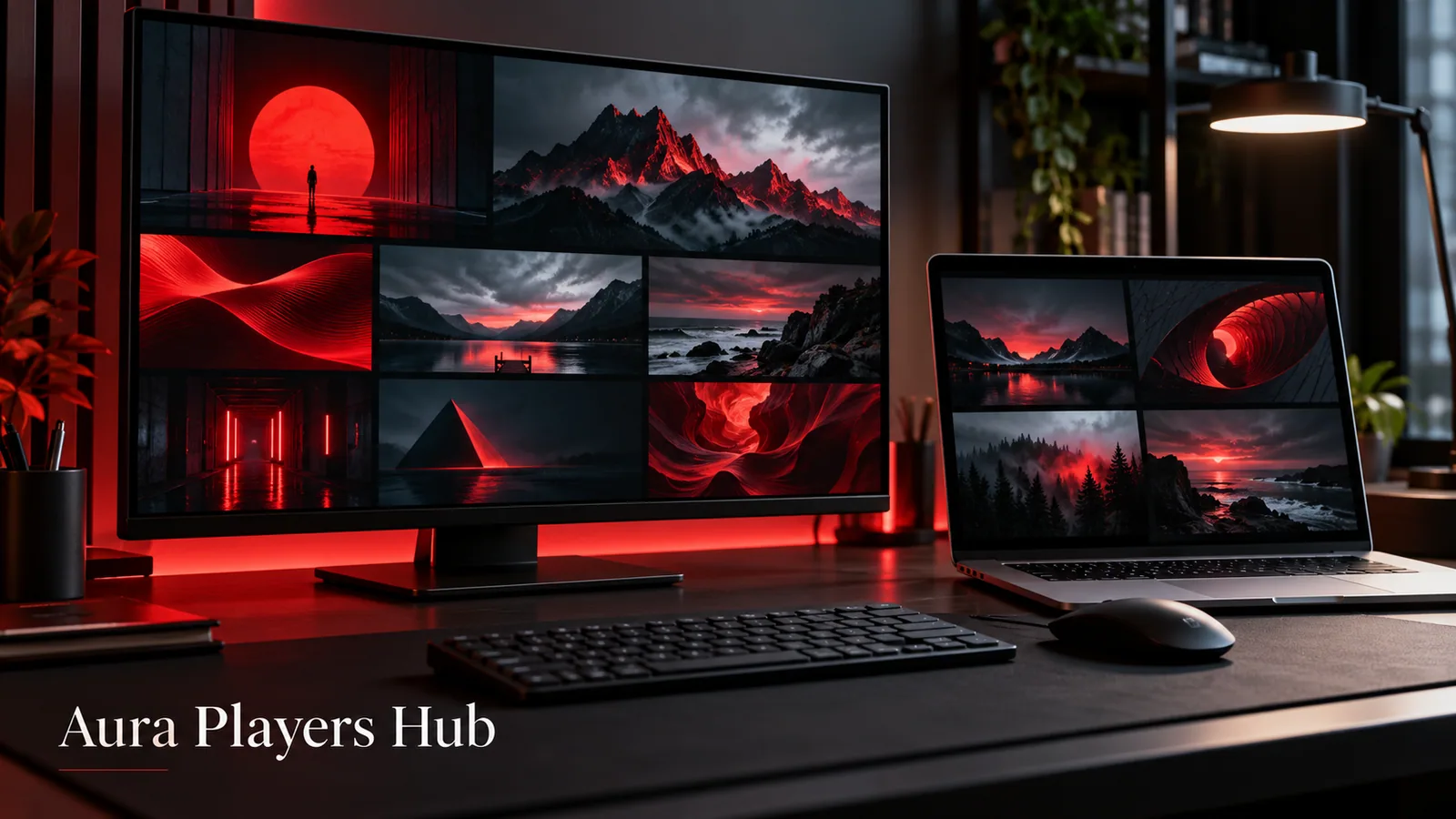
Desktop setup begins by separating Windows from Mac. A Windows installer is not a Mac installer, and an Apple listing that supports some Macs does not automatically support every MacBook. Match the app and operating system before you pay for activation.
The Aura Players Hub desktop collection lists Windows options for ORA PLAYER, IBO ONE, ORA PRO and GRAVITY PLAYER. IBO ONE also has a route for compatible Apple Silicon Macs through its Apple listing. This guide explains how to make those distinctions and activate the correct installation.
Check Which Desktop Route Applies
On Windows, use the existing installer link supplied for the selected player. Check the requirements and prompts before installing, particularly if you are using an older computer or a device with a different processor type. Do not assume that a familiar operating-system name makes every installer compatible.
For Mac, inspect the Apple listing's current compatibility information. The IBO ONE listing describes support for Apple Silicon hardware and a required macOS version. That is narrower than saying every Mac supports the app. If your Mac does not meet the listing, ask us before buying.
| Computer | Route to check |
|---|---|
| Windows | The selected player's existing Windows installer and its requirements. |
| Compatible Apple Silicon Mac | IBO ONE Apple listing, hardware support and required macOS version. |
| Other Mac hardware | Do not assume support; confirm a suitable route before purchase. |
Use the Correct Download, Not a Similar Product
Select the exact app on Aura Players Hub and use the desktop download information already supplied. Keep the app name consistent from download to checkout. Similar names in a general search can refer to different products with different licence systems.
Follow the installer or store prompts for your computer. If the file is blocked or the app cannot start, note the exact message, computer type and operating system. Do not pay merely to see whether activation will repair an installation error. We can help identify the appropriate next step first.
Find the Device ID in That Installation
Open the installed player and look in the activation, account or settings screen for its Device ID. Copy it exactly, keeping the app name beside it. Your computer's serial number, another device's app ID or an identifier from a previous player is not a replacement.
If you also use a TV or phone, treat each player installation separately. The same customer or account can still be using different app-specific Device IDs. Platform compatibility does not mean that one activation covers all computers and screens.
Test the Playlist and Your Desktop Viewing Routine
Use the seven-day trial with your own authorised M3U playlist. Check browsing with your mouse or trackpad, entering text, opening video and returning to the library. Try windowed and full-screen viewing if these are part of your normal routine.
A large monitor does not guarantee picture quality, and changing players does not repair a supplier server. Test the content and connection you will use in practice. If the list will not load, record what the app shows instead of repeatedly deleting its settings or reinstalling it.
Get Help With Playlist Configuration
If you cannot apply the playlist yourself, Aura Players Hub can assist remotely through the supported app's Device ID. Send the app name and identifier privately on WhatsApp, describe the problem and provide playlist information only through the support conversation when needed.
We can help distinguish a player configuration issue from an inactive subscription or unavailable supplier source. The latter remains the supplier's responsibility. Our ability to help with setup should not be read as a promise of remote control over your computer or responsibility for its entire system.
Activate Only After You Have Chosen the App
Choose your app and enter the matching desktop Device ID at Aura Players Hub. Select one year for €4 or lifetime for €7, complete checkout and send the required WhatsApp follow-up. We check payment and activate manually, usually within 30 minutes during European daytime hours after verification.
Lifetime is for that app on that device while the app continues. A replacement computer, operating-system reinstall or changed app installation may need a case-by-case review. If you have already purchased a licence elsewhere, ask us to check before making a mistaken second purchase.
Sources and further reading
Ready for your next step?
Choose your app and enter its exact Device ID. Activation is completed personally after payment verification and your WhatsApp follow-up.
Activate Your Desktop Player Need help? Ask us