Replacing a television or reinstalling a player can affect the installation associated with your activation. Before making changes, record the app name and Device ID and contact Aura Players Hub if you need to understand what happens to the existing licence.
Activation is tied to the chosen app on a particular device. Neither an annual nor a lifetime purchase automatically creates a transferable licence. We review transfer requests individually and explain what is possible for the specific app and circumstances. Asking first is much better than resetting a working setup and trying to reconstruct it afterwards.
Why the Device ID matters
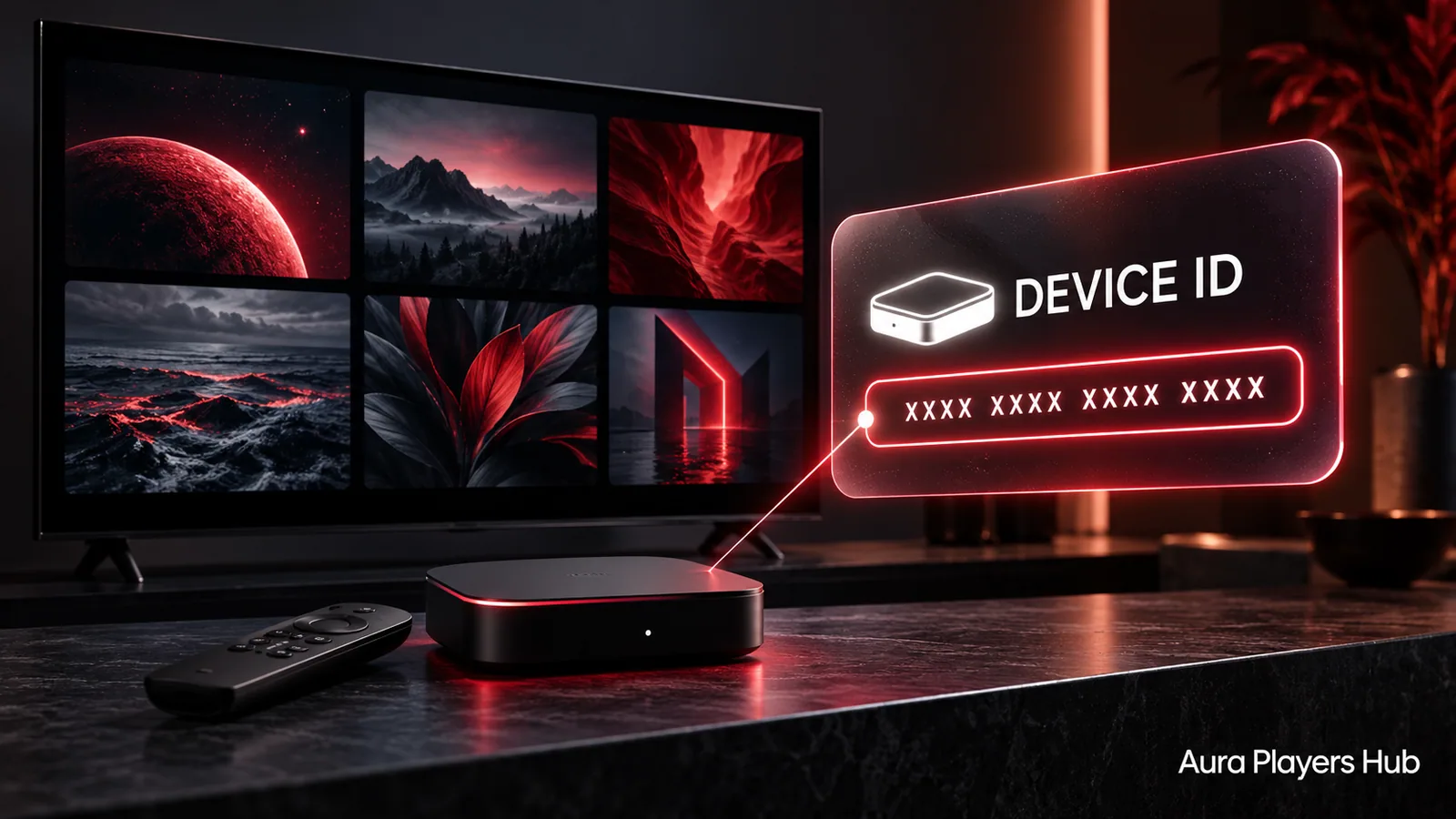
The Device ID displayed inside your player identifies the installation we activate. Another player on the same television has its own identifier, and the same app on a second device is a separate installation. A customer name or a playlist address alone does not tell us which licence record you want checked.
Keep a private note of the full app name, original Device ID and relevant payment reference. That gives support a clear starting point if a screen fails or hardware is replaced. Do not publish activation details in a public review or forum. The information is for your own records and the private conversation about your request.
Replacing your television or streaming device
A new television or streaming box normally means checking compatibility again. An app available on your previous device may not run on the replacement operating system. For example, a player installed on an Android device does not become a Samsung Tizen application merely because the new screen has the same television brand.
Choose the replacement app before assuming an old activation can follow you. HOT ORA IPTV PLAYER supports Samsung Tizen and LG webOS, while IBO ONE is not available for Samsung Tizen in our collection. If the old and new setups use different players, explain both in your message so we can discuss the actual situation instead of an unspecified transfer.
Reinstalling on the same device
Reinstalling may remove saved app settings and can affect the identifying information available to us. Behaviour depends on the app and platform, so do not rely on a blanket claim that the ID always stays the same or always changes. Record the current details before uninstalling, clearing data or resetting the device.
If your only problem is a playlist that will not load, reinstalling is rarely the right first question. A wrong address, expired content account or supplier outage needs a different fix. Contact us with the symptom first. Preserving the current installation can make it easier to check activation and configuration without introducing another variable.
Ask about transfer possibilities before ordering again
Send the original app name, original Device ID if available, new device platform and a concise reason for the change. If the old device is broken or inaccessible, say so directly. Include your payment reference where possible so the request can be matched to its history.
We may or may not be able to move the activation. A decision can depend on the app's controls, the existing licence and the particular circumstances. There is no automatic transfer promise with either duration. Do not pay for several new activations while waiting for a reply unless you deliberately want separate licences and have confirmed the details.
Keep player activation separate from playlist access
Moving a player licence does not automatically move or extend a content subscription. The playlist supplier may have its own device, location or simultaneous-connection rules. Ask that supplier about those terms if replacing hardware changes how the subscription is used.
We can assist with configuring your authorised M3U playlist in a supported app through its Device ID. If a replacement player is correctly activated but shows no library, ask for setup help rather than assuming the transfer failed. A source-server problem, expired subscription or supplier restriction must still be addressed by the responsible content service.
Confirm the new setup carefully
If a new activation or an agreed transfer is arranged, check the app name and current Device ID before proceeding. For a new purchase, use our existing checkout and send the required WhatsApp follow-up after payment. We verify payment before activation; opening a prepared message without sending it does not notify us.
After confirmation, open the intended app and use its normal refresh or restart controls if needed. Keep the conversation in the same support thread so we can see what changed. Sales do not include a voluntary refund simply because a future device is incompatible, except for verified duplicate purchases and any remedies required by applicable law. Checking first protects your time and helps us give a clear answer.
Ready for your next step?
Choose your app and enter its exact Device ID. Activation is completed personally after payment verification and your WhatsApp follow-up.
Discuss Your Activation With Us Need help? Ask us