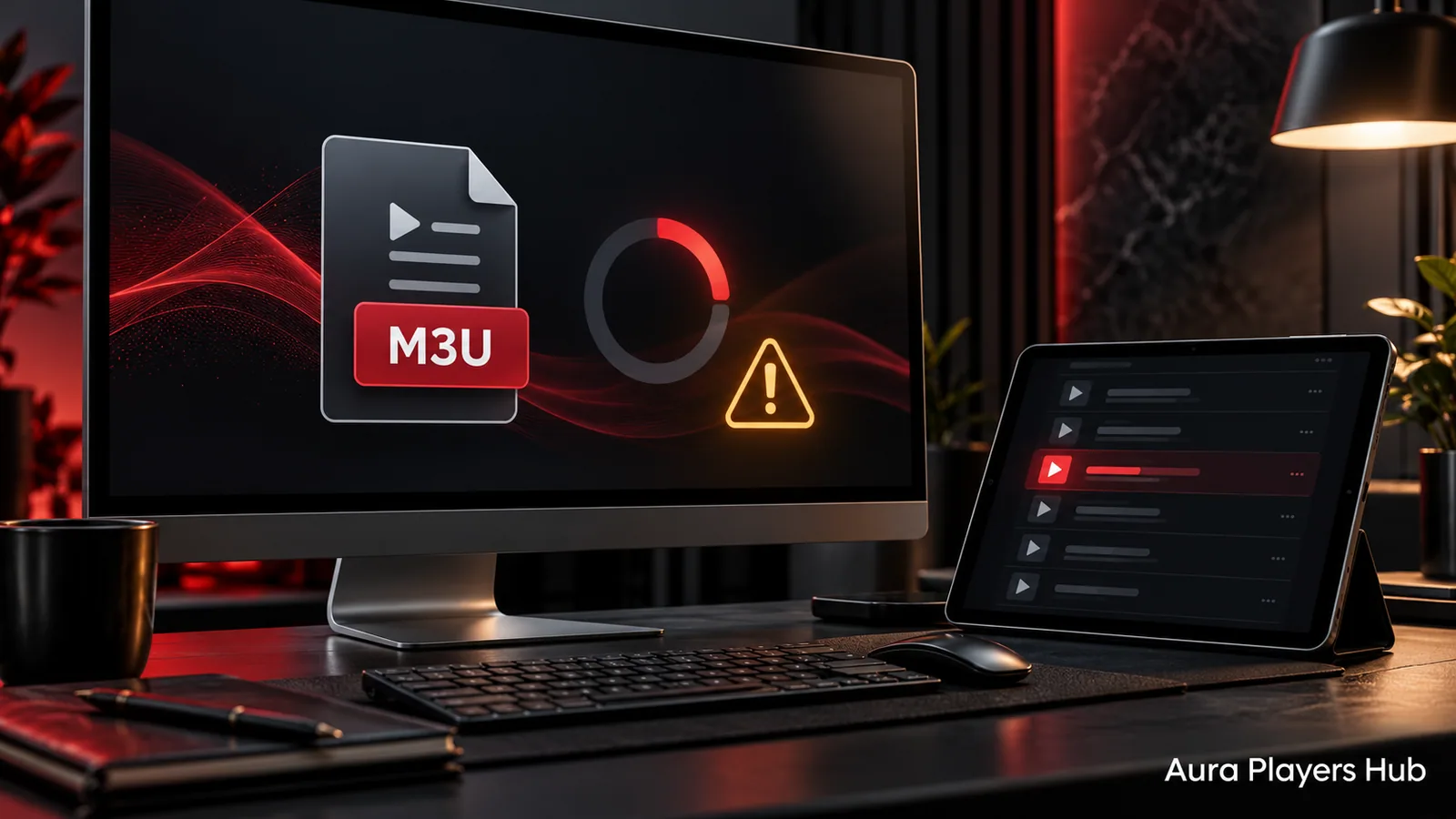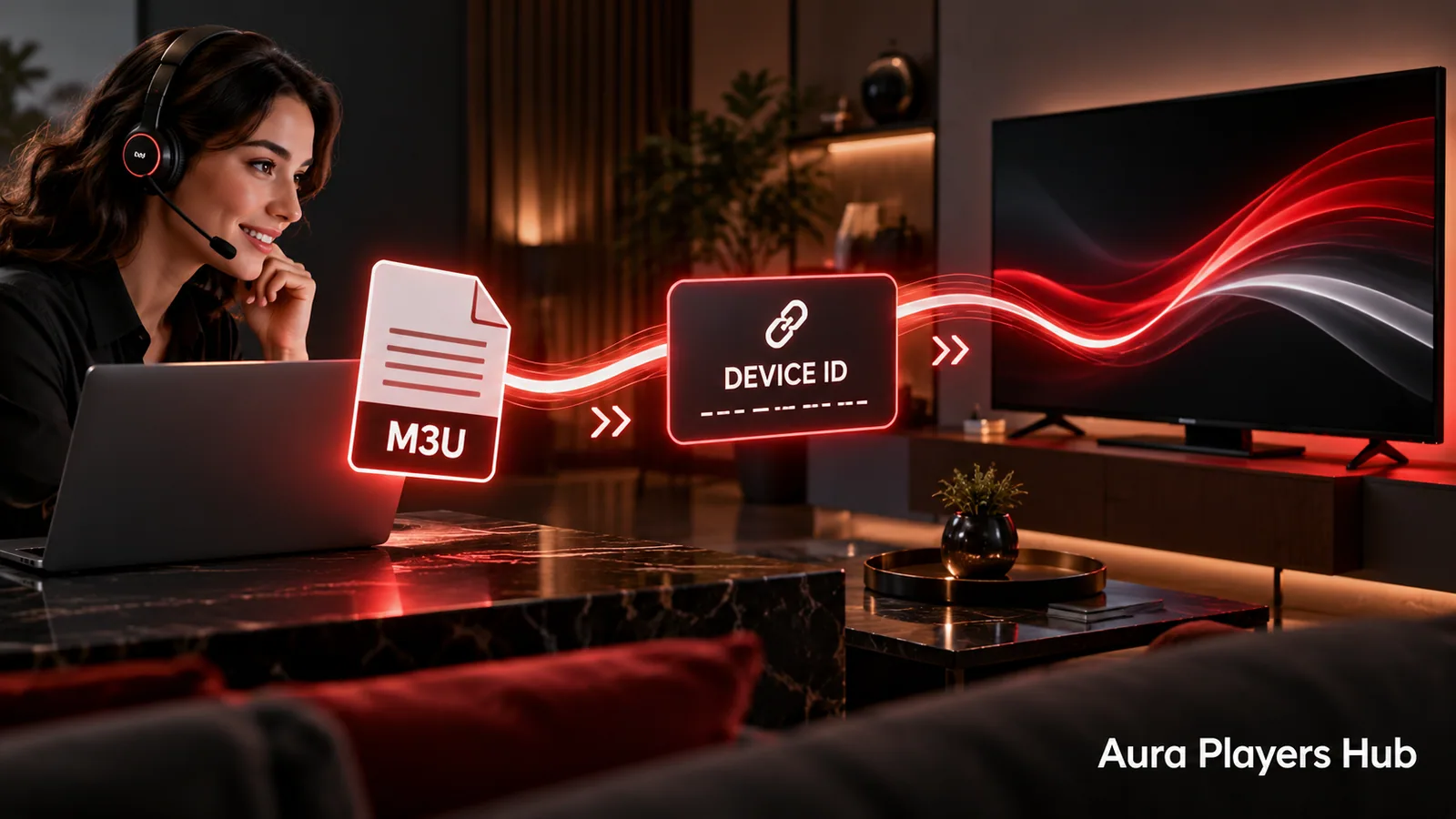
Typing a long M3U address with a television remote is inconvenient, and a small copying error can prevent a playlist from loading. Aura Players Hub can help configure your authorised playlist in a supported player through the app's Device ID. This gives you a practical route to assistance when the normal setup is not going smoothly.
Remote playlist assistance means working with the supported app's management process. It does not mean that we take remote desktop control of your television, browse your personal files or need access to your bank account. The app and the correct Device ID are the starting point.
Understand the two separate requirements
Your player needs an appropriate trial or activation status, and your content needs a working M3U playlist. A licence enables the selected app on its device; a playlist identifies the content supplied separately. These two requirements can be checked independently when something is missing.
Each supported app has a seven-day trial for testing your own playlist. Paid activation is €4 for one year or €7 for lifetime on one app and device. Playlist assistance does not turn the player licence into an included content subscription. If you need information about lawful content options, discuss that separately with support before assuming any additional item is part of the activation price.
Identify the exact installation
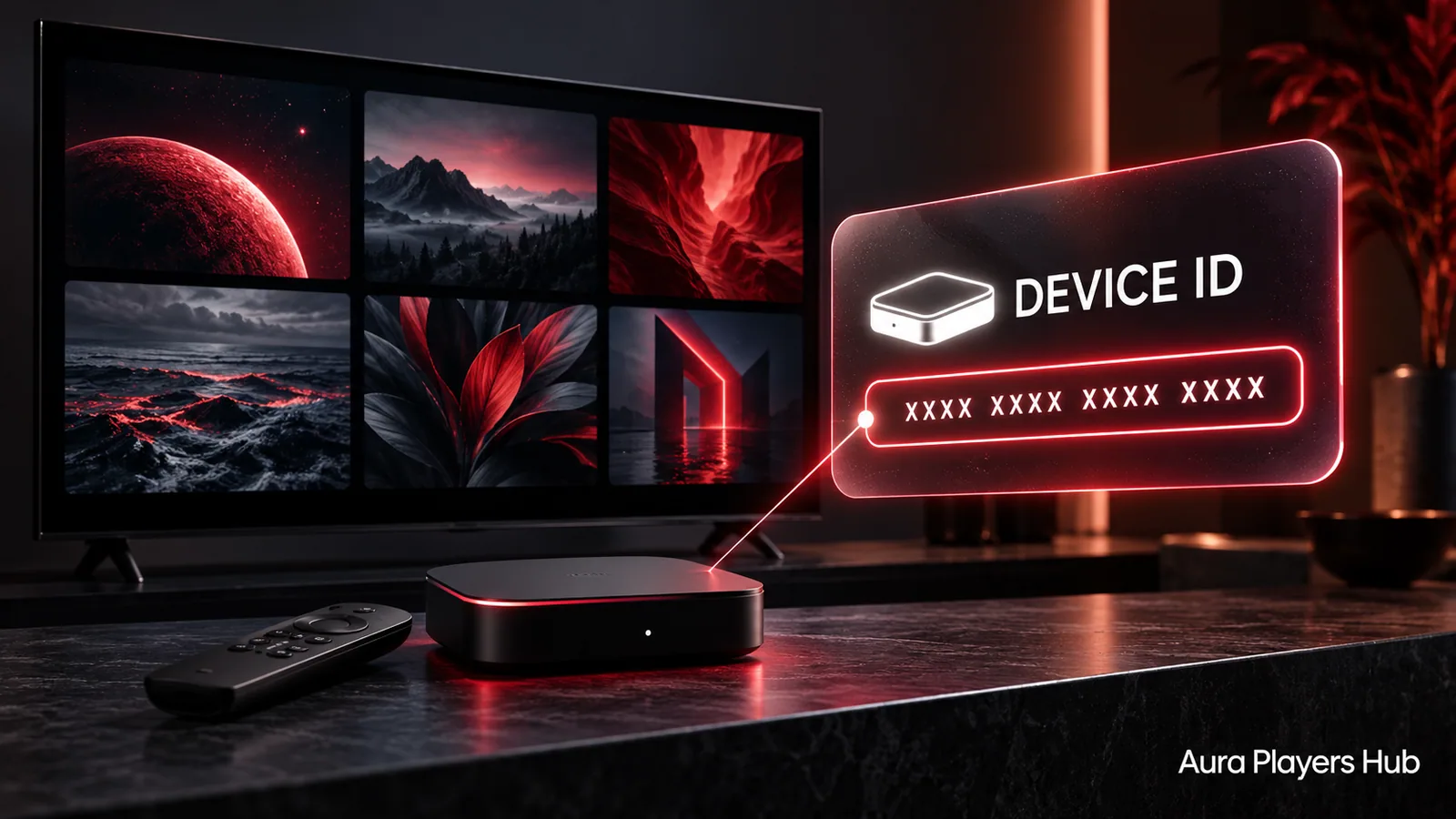
Open the player you want to use and find its Device ID in the activation, account or settings screen. Write down the full app name as well. The ID is specific to the app and device, so an identifier from a different player or another room is not enough to identify the installation in front of you.
If you use both a television and a phone, say which one needs help. If the same player has been reinstalled, tell us that before we start. Keeping these details clear prevents a configuration request being applied to a previous installation. Do not send a list of unexplained numbers and expect us to know which screen each represents.
Let us check the playlist configuration
We use the supported player's management options to help associate or correct the playlist for the intended app Device ID. Depending on the issue, assistance may involve checking a copied address, selecting the correct installation or confirming that the information supplied is complete. We will explain what we need rather than ask you to make unrelated changes.
Keep the device available during the conversation if possible. Avoid switching apps, resetting settings or reinstalling while we are checking the record. A changing Device ID or an unexpected second installation makes the original problem harder to follow. If you must leave, tell us so that the next action is clear.
Refresh the player and test normally
After configuration is confirmed, use the app's normal refresh or restart action. Give the player time to retrieve the playlist and organise the available content. A larger list may take longer to appear than a short one; repeatedly interrupting the process will not make a supplier's response arrive sooner.
Test a small selection of content that you are entitled to access. Report whether the library appears and whether the items open. This distinguishes a successful playlist import from a playback failure. Tell us the actual result instead of simply saying that everything is broken, because different stages require different follow-up checks.
Know when the content supplier must act
We can help with supported player activation and configuration. We cannot repair a third party's unavailable server, renew an expired content subscription without a separate arrangement, restore removed content or override a supplier's connection restrictions. A validly configured player may still be unable to retrieve a source that is offline.
If a supplier-side problem is identified, contact that supplier with the relevant error and timing. We can explain what we observed so the conversation is focused. If the app itself is still the issue, continue the same WhatsApp thread with your Device ID and our previous steps. That keeps support practical and avoids starting the diagnosis again.
Ready for your next step?
Choose your app and enter its exact Device ID. Activation is completed personally after payment verification and your WhatsApp follow-up.
Request Playlist Setup Help Need help? Ask us