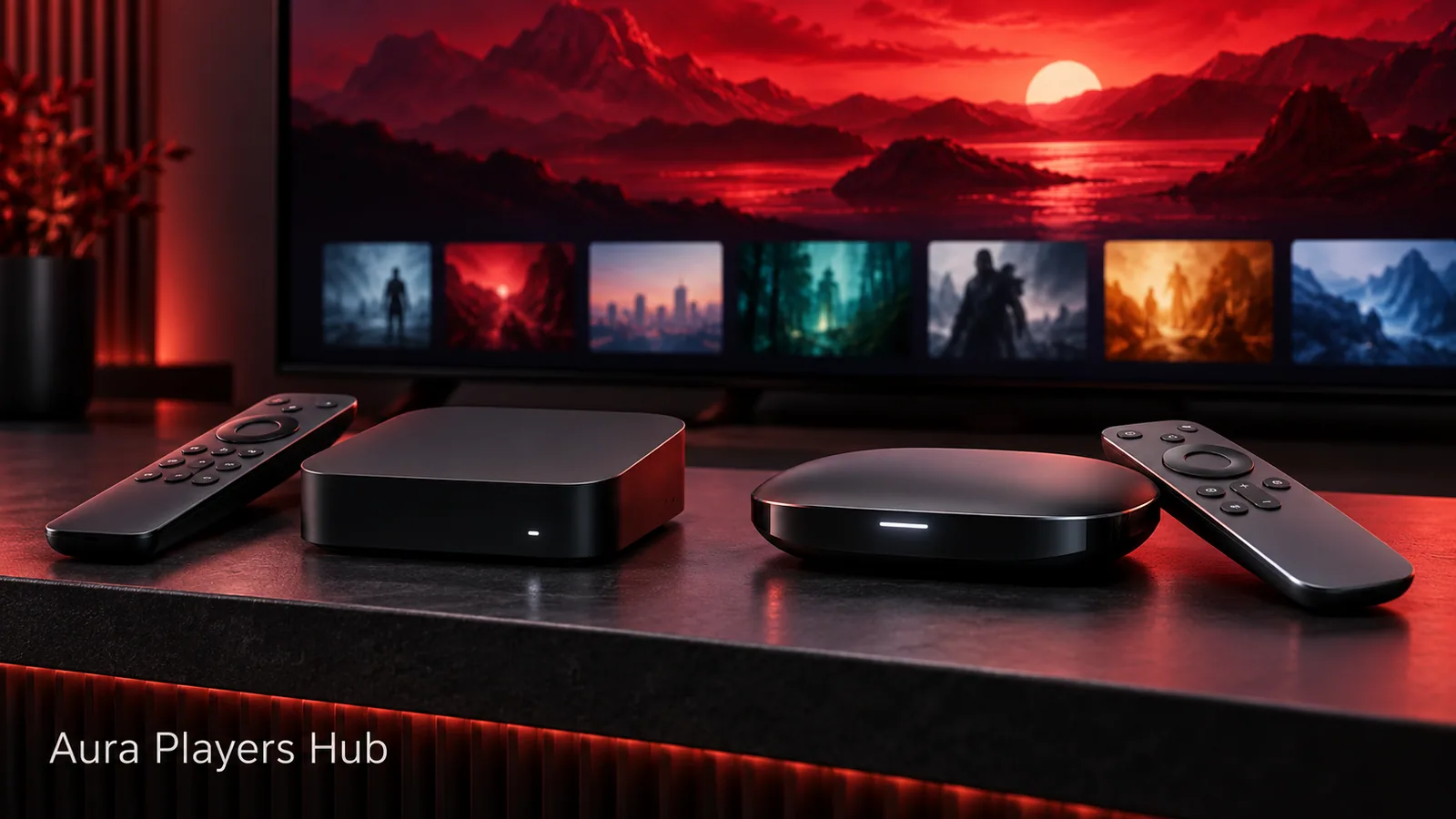
Apple TV and Roku are separate streaming platforms. An app available on one is not automatically available on the other, and neither should be treated as an Android device. Begin by checking the player choices for the hardware you actually use.
Our collection lists ORA PLAYER and IBO ONE for supported Apple TV installations, and ORA PLAYER for Roku. Check availability and requirements on the actual device before paying. The activation applies to the chosen app and its Device ID, not to every app in the collection or every screen in your home.
Identify Apple TV Hardware or a Roku Device
For Apple TV, distinguish the streaming hardware from the Apple TV viewing app that may appear on another television. Having that viewing app does not mean the television can install all apps made for Apple TV hardware. Check the platform where you intend to install the IPTV player.
For Roku, identify whether you have a streaming player or a television running Roku software. Use the app catalogue and compatibility information available for that specific device and region. If a player is absent, ask us about the situation rather than assuming a licence purchase unlocks the download.
Check the Apple TV App, Not Only the iPhone Listing
ORA PLAYER and IBO ONE are the Apple TV options listed in this collection. Use the existing app information to confirm support and requirements for the streaming device. An app being available on iPhone or iPad does not, by itself, prove that the same installation route applies to Apple TV.
Install the exact supported player and open it on the Apple TV. If an app-store screen offers its own purchase options and you have already paid through that route, contact us before buying again. The aim is to activate the right installation once, not create an avoidable duplicate purchase.
Use the Roku Route for the Listed Player
ORA PLAYER is the Roku option in our current compatibility collection. Search using the correct player name through the device's normal app catalogue and confirm the match. Use the Roku-specific guidance in our existing download section rather than APK instructions written for Android.
If availability differs from what you expected, tell us your Roku model and region. We can help check the listed option before you pay. Do not substitute a different similarly named app, because a different product may use a different Device ID and activation system.
Find the Device ID and Test the Remote Workflow
Open the installed player's activation, account or settings screen and record its Device ID. Take a clear photograph if that is easier than typing from the television. Keep the identifier with the exact app name and note which streaming device it came from.
Check navigation using the normal remote. Move through the library, start playback, pause and return to browsing. Test readability from your usual seat and explore the available language or appearance settings. A familiar layout is more useful than choosing purely from a promotional picture.
Use the Seven-Day Trial With Your Own Playlist
Each supported app has a seven-day trial. Test your own authorised M3U playlist on the intended Apple TV or Roku setup, using the network and viewing routine you expect to keep. Check several items and ordinary browsing rather than a single successful app launch.
If the playlist will not upload, we can help configure it through the supported app's Device ID. Share playlist information privately on WhatsApp when support needs it. We cannot fix a content supplier's subscription or servers, and an activation purchase does not include a content library.
Complete Activation for the Correct Device
When testing is complete, select the installed player at Aura Players Hub and enter the Device ID from that streaming device. Choose one year for €4 or lifetime for €7, use checkout and then send the WhatsApp request. Make sure the request identifies the app you are actually watching on the television.
Payment is verified and activation is handled manually, usually within 30 minutes during European daytime hours after payment has been checked. Lifetime lasts for the chosen app on that specific device while the app continues. If you later replace the streaming box or change players, contact us for an individual assessment.
Ready for your next step?
Choose your app and enter its exact Device ID. Activation is completed personally after payment verification and your WhatsApp follow-up.
Choose Your Streaming-Device Player Need help? Ask us