

Setting up an IPTV player on an Android phone or tablet starts with the correct app installation, not with payment. Install a compatible player, open it on the device you intend to use and test your own authorised M3U playlist during the trial.
This guide covers the phone and tablet workflow. If you are installing on a television or streaming device, use the TV setup guide instead. A touch-screen app and a TV-oriented app may have different controls even when their names are similar.
Before You Install
Choose a player listed for Android in the supported-device directory. The Android collection includes ORA PLAYER, IBO ONE, DUPLEX PRO, ORA PRO and KEMET PLAYER according to the platform information shown there. Make sure the app you intend to activate is the one you actually download.
Have your own M3U playlist available privately and check that your content subscription is active. You can install and evaluate the player before purchasing activation. A player licence does not create a playlist or repair an expired content account.
- Check the exact app name before installing.
- Use the phone or tablet you intend to activate.
- Keep your playlist link private because it may contain access information.
Use the Existing Download Options
In the activation area, select the player and use the relevant compatibility and download information for Android. Where a Google Play listing is supplied, use the linked listing rather than a similarly named search result. If an APK option is provided, use the existing link and instructions.
Do not substitute a TV build simply because the filename looks familiar. Follow the device's installation prompts and only allow installation from a source you recognise. We retain the current download links and codes so there is one place to consult rather than competing instructions across the blog.
Open the Player and Check the Basics
Launch the app once installation finishes. Check the available interface language and make sure you can reach the main menus. On a phone, try both the normal browsing position and the viewing orientation you intend to use. On a tablet, check text size and control placement at a comfortable distance.
If the app does not open normally, note your device model, Android version and the exact app name before contacting us. Buying activation is not the first troubleshooting step for an app that cannot launch. Avoid repeated uninstallations while you are trying to establish what is wrong.
Find and Record the Device ID
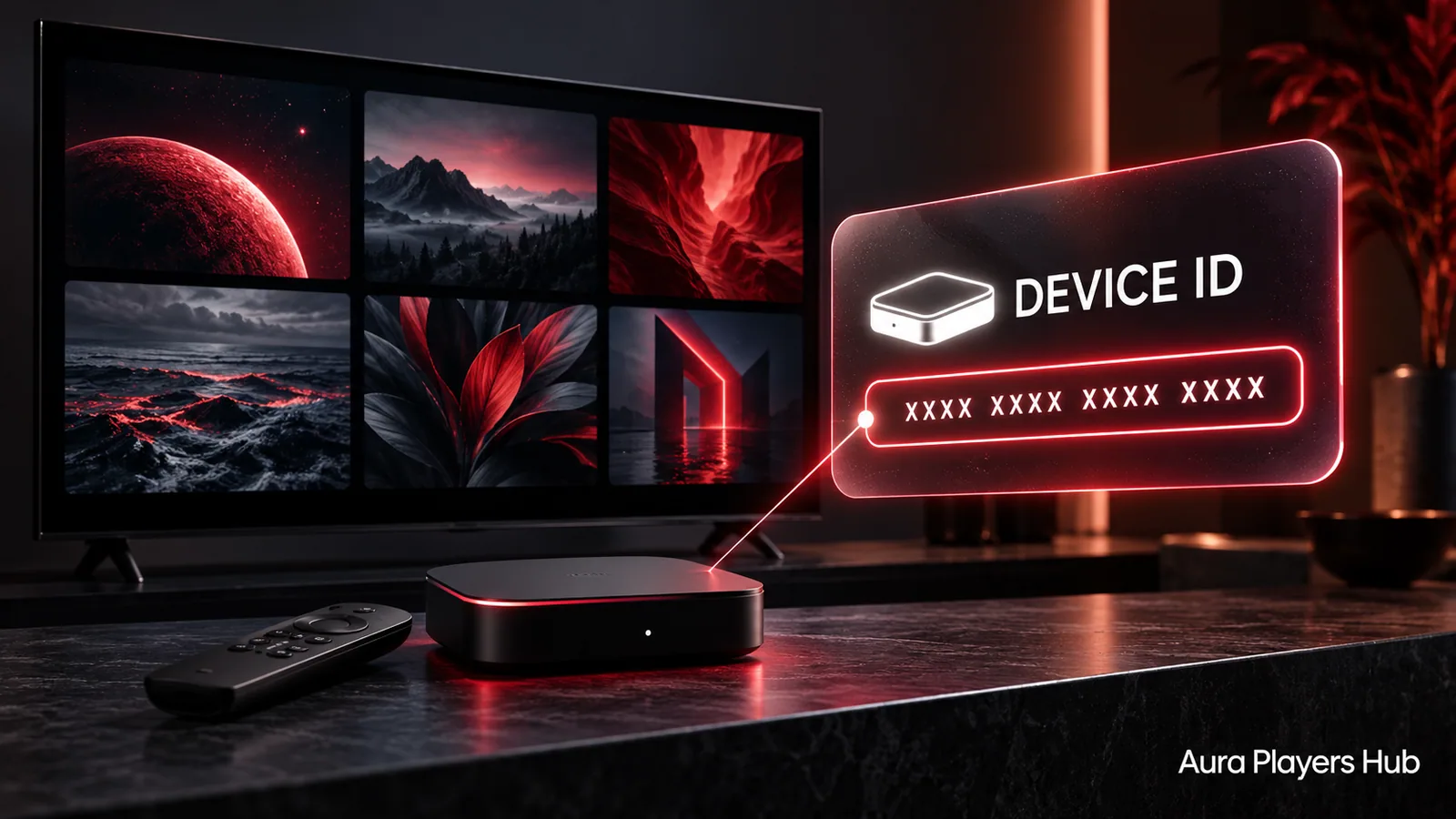
Look in the app's activation, account or settings screen for its Device ID. The location and wording can vary between players. Enter the seven-digit numeric identifier exactly as displayed and keep it paired with the app name. Preserve any leading zeros; spaces and letters are not accepted.
If copying is awkward, take a clear screenshot for your private WhatsApp conversation. Do not use an ID from a different phone or from an app you previously tested. If you reinstall and the identifier changes, contact us before reusing an old activation request.
Test Your M3U Playlist During the Trial
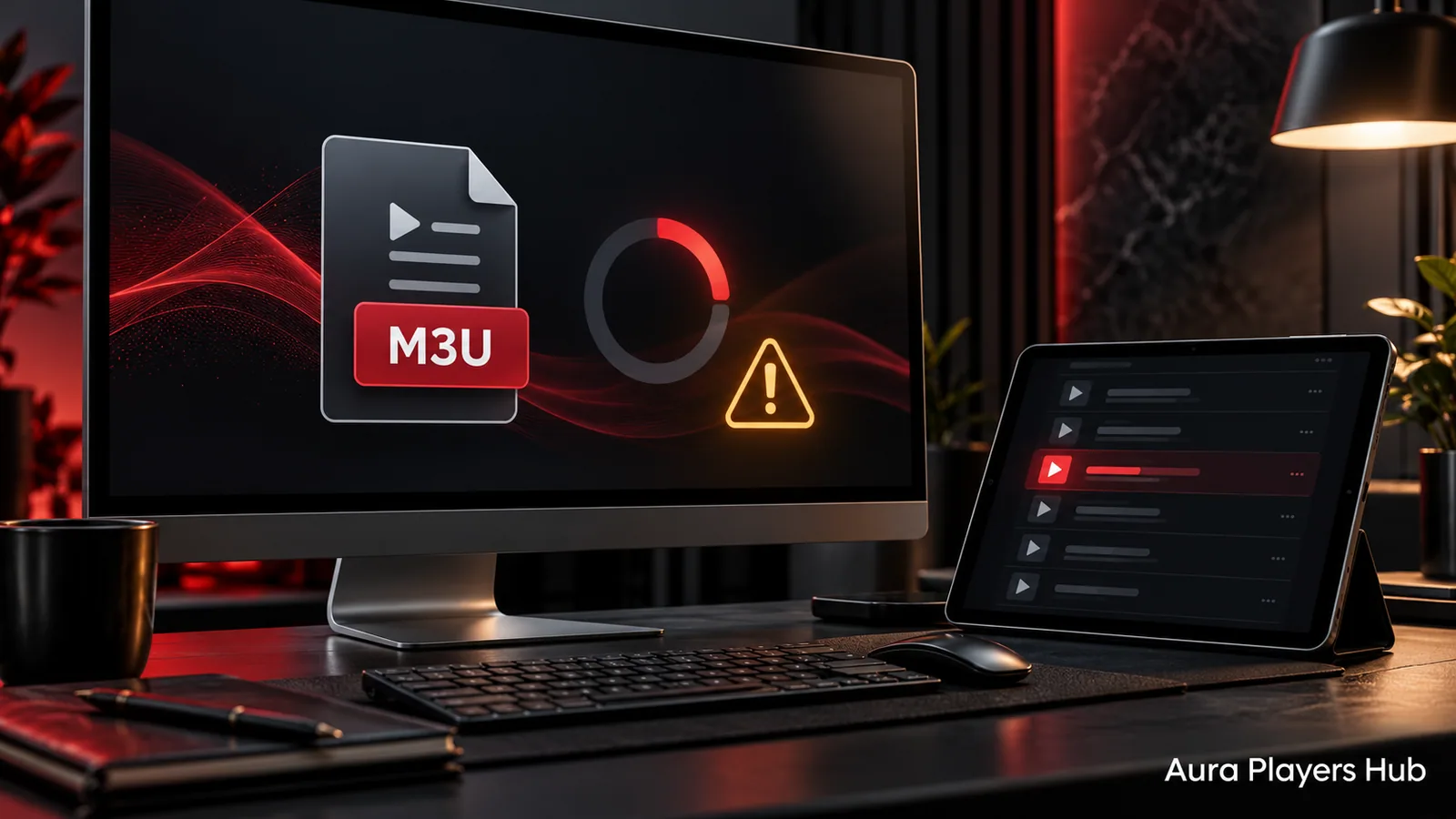
Every supported app has a seven-day trial. Add or arrange setup of your own authorised playlist and check it on the phone or tablet. Try your usual viewing network and several items rather than judging the result from a single short test.
If the list will not upload, we can help apply or configure it through the chosen app's Device ID. Send your app name and ID privately on WhatsApp and explain what happens. Avoid posting the playlist URL publicly or clearing app data before support has had a chance to assess the problem.
Complete Checkout and Send Your Request
Once you are satisfied with the test, select the app on Aura Players Hub, enter its Device ID and choose one year for €4 or lifetime for €7. Payment instructions remain in checkout. After paying, send the prepared activation message through WhatsApp.
Activation is manual after payment verification. We usually process requests within 30 minutes during European daytime hours after payment is checked, but that is not a guaranteed delivery time. The activation covers the chosen app on that device. For a later phone replacement or transfer request, contact us for a case-by-case discussion.
Ready for your next step?
Choose your app and enter its exact Device ID. Activation is completed personally after payment verification and your WhatsApp follow-up.
Activate Your Android Player Need help? Ask us